Every page in Q.wiki has a consistent structure and contains several fixed elements. This article gives you an overview of the four main areas of a Q.wiki page: page header, page content, right sidebar, and metadata section.
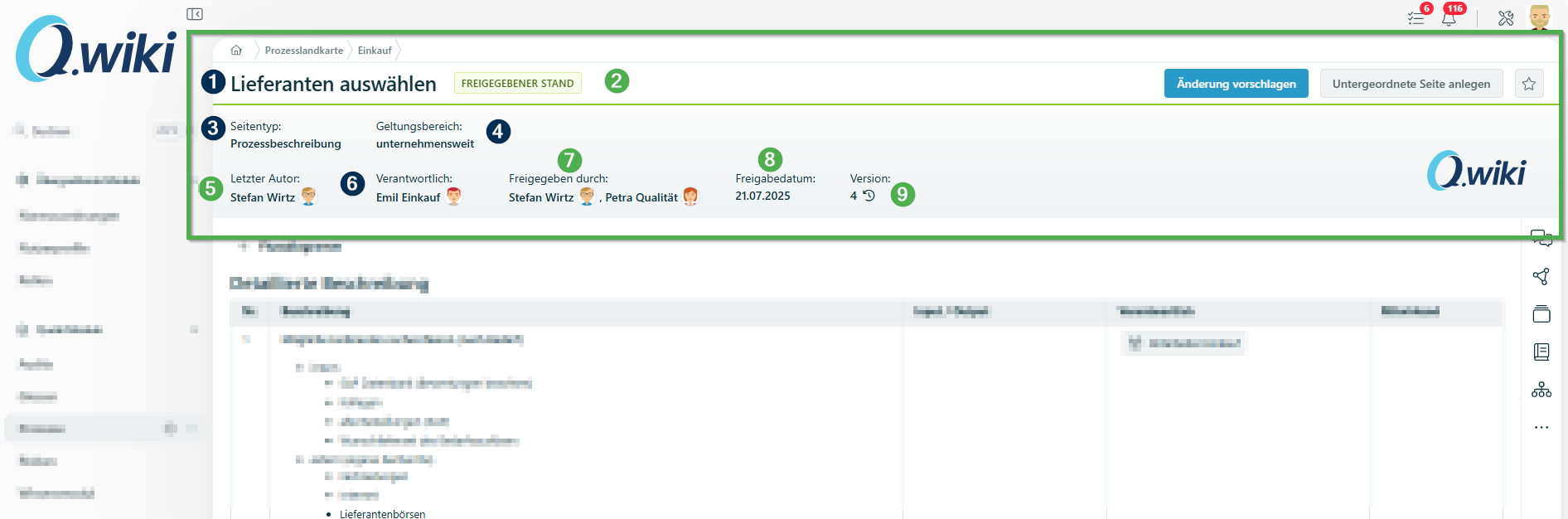
Page Header
In the page header you'll find important information about the page at a glance:
| No. | Element | Description |
|---|---|---|
| 1 | Page name | Can be changed in the metadata. |
| 2 | Status | Color-coded: Published = green, Draft / Change proposal = yellow. |
| 3 | Page type | Type of page. Can be changed in the metadata. |
| 4 | Scope | Can be adjusted in the metadata. |
| 5 | Last author | Automatically recorded by the system. |
| 6 | Page owner | Person with content responsibility. Can be changed in the metadata. |
| 7 | Approved by | Shows the people involved in the approval (in the 2-step approval workflow, these are 2 people). |
| 8 | Approval date | Automatically recorded by the system. |
| 9 | Version number | Automatically incremented by one with each approval. |
Page Content
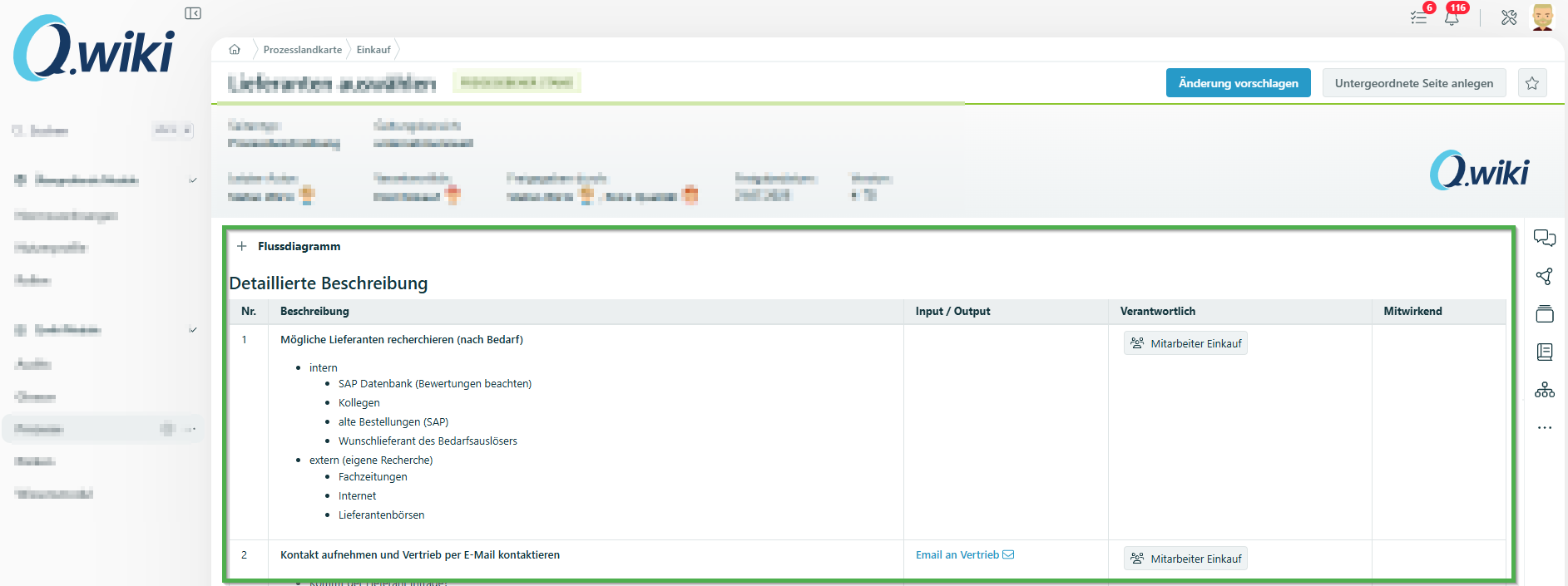
The main area of the page contains the actual content in table format. It covers the specific topic of the page – including responsibilities, roles, and documents you need for the respective work step.
Right Sidebar
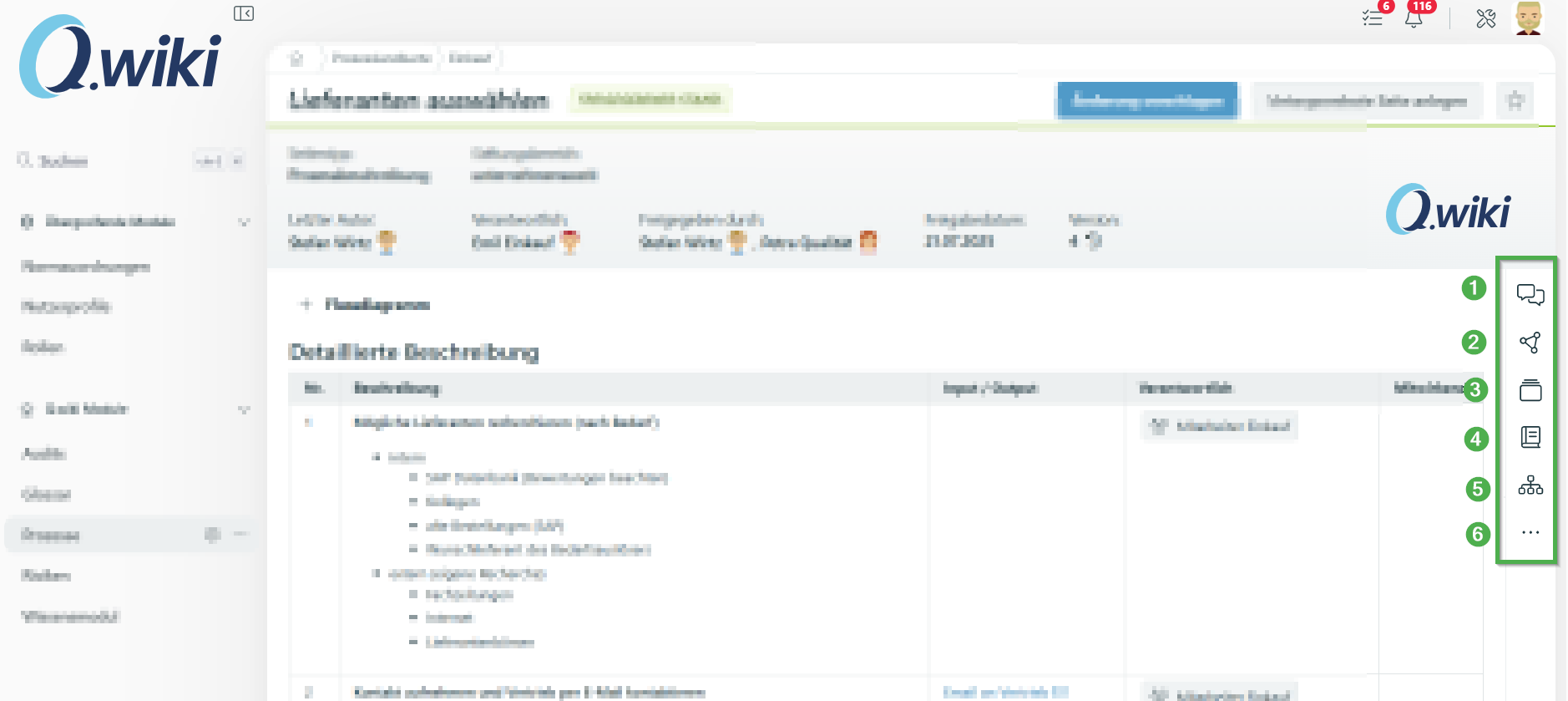
The right sidebar gives you access to additional page functions:
| No. | Element | Description |
|---|---|---|
| 1 | Comments | Write and read comments about the page. |
| 2 | References | View linked pages and documents. |
| 3 | History | View the change history of the page. |
| 4 | Reading mode | Switch to reading mode for prose pages. |
| 5 | Parent page | Navigate to the parent page. |
| 6 | 3-dot menu | Additional actions: Move and copy page, Archive page, Print page, approval settings, and page permissions. |
Metadata Section
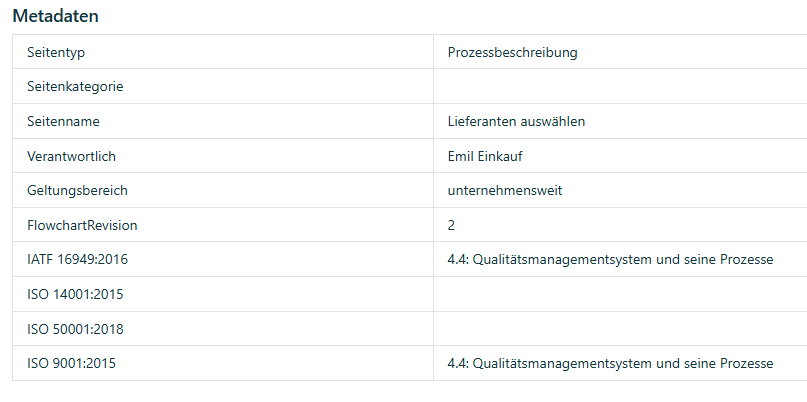
The metadata section is located as a table at the very bottom of the page, below the content area. To change the metadata, click Edit (or Suggest change and then Edit) and scroll all the way down.
You'll find detailed information in the article Working with, creating and modifying metadata.
Related Articles
Was this article helpful?
That’s Great!
Thank you for your feedback
Sorry! We couldn't be helpful
Thank you for your feedback
Feedback sent
We appreciate your effort and will try to fix the article