This article shows you how to create, edit, and optimize flowcharts in Q.wiki. Flowcharts visualize process flows and make complex workflows easy to understand.
Create a flowchart
- Switch to edit mode for a page.
- Click Create flowchart.

Edit an existing flowchart
- Switch to edit mode for a page.
- The flowchart can now be edited directly.
Import content from a table
With the AI package, you can automatically convert a written-out process into a flowchart using AI. The table content is converted into a flowchart: steps from the table become activities and are assigned to the corresponding role lane. You can then extend the flowchart as needed.
- The created flowchart is based on the table structure. However, possible branches described in the table content are not considered.
- Roles in the lanes are inserted as plain text, not as editable widgets.
Edit swim lanes
- Add a swim lane: Click any swim lane and use the button to add a new lane above or below. (1)
- Remove a swim lane: Select the swim lane and click Delete. (2)
- Resize a swim lane: Select the swim lane and adjust the size via drag & drop using the blue handles. (3)

Each row is a swim lane. Create one swim lane for each organizational role. To add or change a role, double-click the desired swim lane to open the role selection. You can use roles from the integrated Roles module or enter them manually.

Insert and edit flowchart symbols
- Insert a flowchart symbol:
- drag and drop from the sidebar into the diagram (1)
- click an existing symbol, click the blue plus sign, and add via the mini-editor (2)

- Change a flowchart symbol: Click the desired symbol and select Replace in the mini-editor.
- Only certain allowed combinations are shown when replacing.

- Delete a flowchart symbol: Click the symbol and select Delete in the mini-editor.
- Name or rename a flowchart symbol: Double-click the symbol and type the new name.
- Tip: Automatic line breaks for long words are not inserted – use a hyphen for manual line breaks.
- Copy a flowchart symbol: Click the symbol and copy it with Ctrl+C. Paste it with Ctrl+V at the desired location.
- Move flowchart symbol(s):
- Select individual symbols and drag them to the desired location.
- Activate the lasso tool, select the desired symbols, and drag them to the desired location.

Link flowchart symbols
- Click the desired symbol and select the Link button.
- You can link to pages in Q.wiki or external content.

Connect flowchart symbols with arrows
Set arrows
- Activate the connector tool in the left editor (1) or click a symbol and activate the connector tool in the mini-editor (2).
- Connect the desired docking points.
Label arrows
- Double-click the arrow and type the desired text.
Delete an arrow
- Click the arrow and click the Delete button.

Helper functions for working with flowcharts

- Undo or redo steps
- Center
- Zoom
- Toggle fullscreen mode
- More functions:
- Export options
- Import an existing flowchart – supported formats:
.xml,.bpm,.bpmn - Delete the entire flowchart
Copy a flowchart
- Export the diagram as a BPMN file and then import it on the desired page.
Frequently asked questions
Can I automatically create a flowchart from a table?
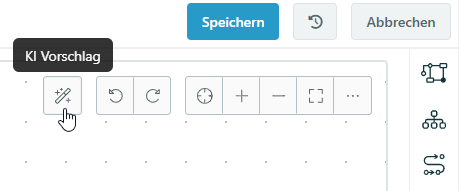
Yes, you can automatically create a flowchart from a table. Use the AI Suggestion button in the BPMN editor.
Can I set flowcharts to be expanded by default when pages are opened?
This setting can be configured in the module settings of a process area:

Related articles
Was this article helpful?
That’s Great!
Thank you for your feedback
Sorry! We couldn't be helpful
Thank you for your feedback
Feedback sent
We appreciate your effort and will try to fix the article