Q.wiki divides tools into two areas: global tools for Key Users and module-specific tools available to all users. This article gives you an overview of both areas and their functions.
Global Tools (Key Users)
As a Key User, you'll find the Tools button at the bottom left of the sidebar. You can access the following functions from there:
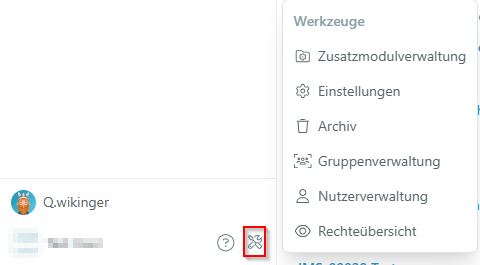
| Tool | Description |
|---|---|
| Module Management | Manage existing modules and create new configurations, e.g. for the Audit module or internal project modules. |
| Settings | Change your logo and enable the trial period for AI-assisted content creation. |
| Archive | View archived pages and restore them if needed. See Restore archived pages and files. |
| Group Management | Manage groups and add or remove users. See Add or remove users from Q.wiki groups. |
| User Management | Invite new users and manage existing users. See Create and invite new users. |
| Usage Report | View statistics on read and write access, interactivity, and the top 10 editors. |
| Rights Overview | Manage read and write permissions per module and group. For example, you can restrict certain groups to read-only access or enable access only for Key Users. |
Module-Specific Tools (All Users)
You can access module-specific tools via the three-dot menu in the left sidebar of a module. These tools are available to all users.
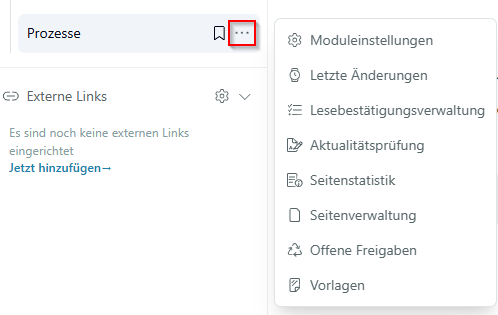
| Tool | Description |
|---|---|
| Recent Changes | A list of all recent changes made in the module. |
| Read Confirmation Management | Overview of created read confirmations and their status. See Request read confirmations in Q.wiki. |
| Timeliness Review | View pending pages and configure review intervals. |
| Page Statistics | Overview of the most frequently accessed pages in the module. |
| Page Management | View the status of all pages (Draft, published, etc.), check page owners, and track change proposals. |
| Open Approvals | Overview of all pages awaiting approval. |
| Templates | Overview of all created templates. See Create and customize templates. |
Module Settings
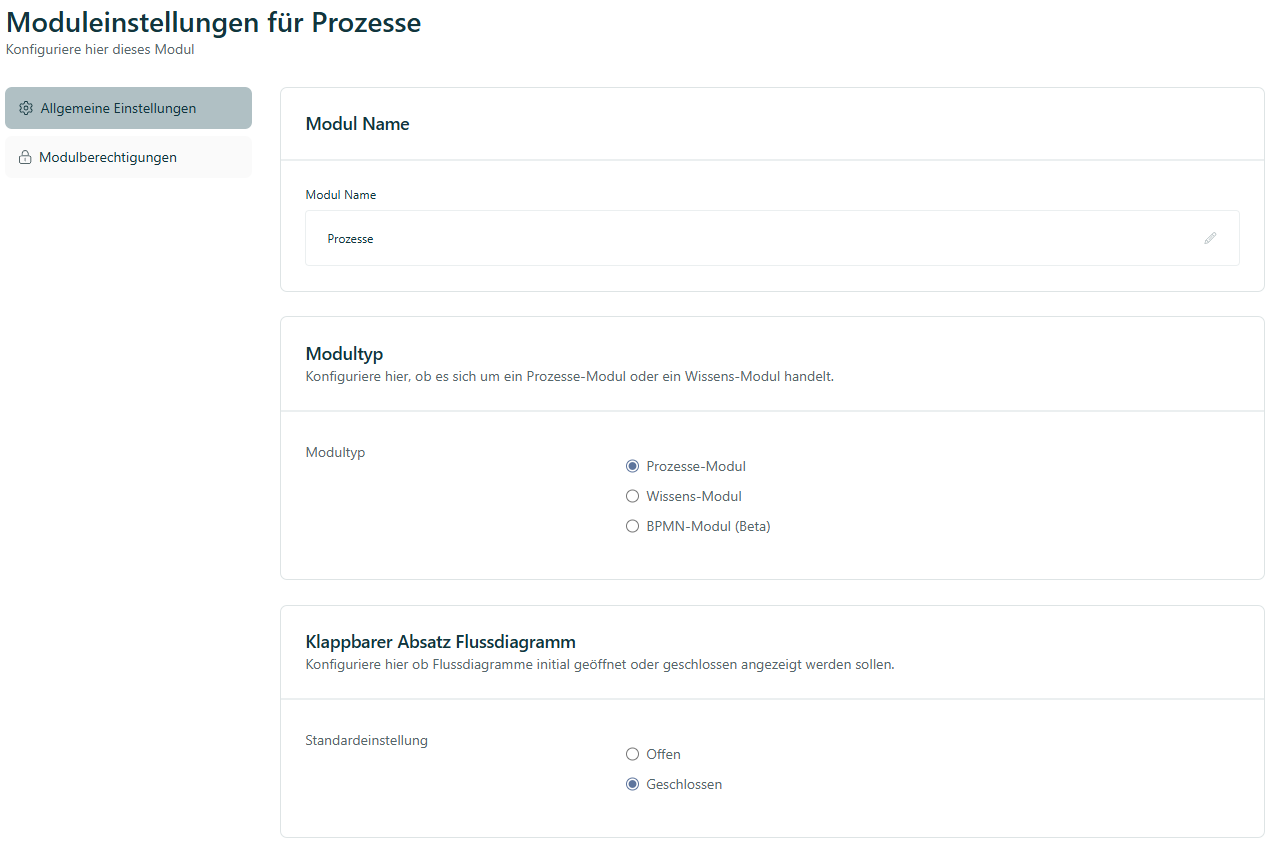
As a Key User or module owner, you'll also see a gear icon next to the three-dot menu. You can use it to adjust module-specific settings, such as changing read and write access for individual groups.
Related Articles
#Was this article helpful?
That’s Great!
Thank you for your feedback
Sorry! We couldn't be helpful
Thank you for your feedback
Feedback sent
We appreciate your effort and will try to fix the article